Week 6: Private Guestlists, Passwords, and a New Settings Page for Ticketed Events
Hosts can now keep a private guestlist for ticketed events, lock any event with a password, and set everything up on a new Event Settings page. Groups have a clear owner too, and every event page got a handy new menu.

01 Private guestlists
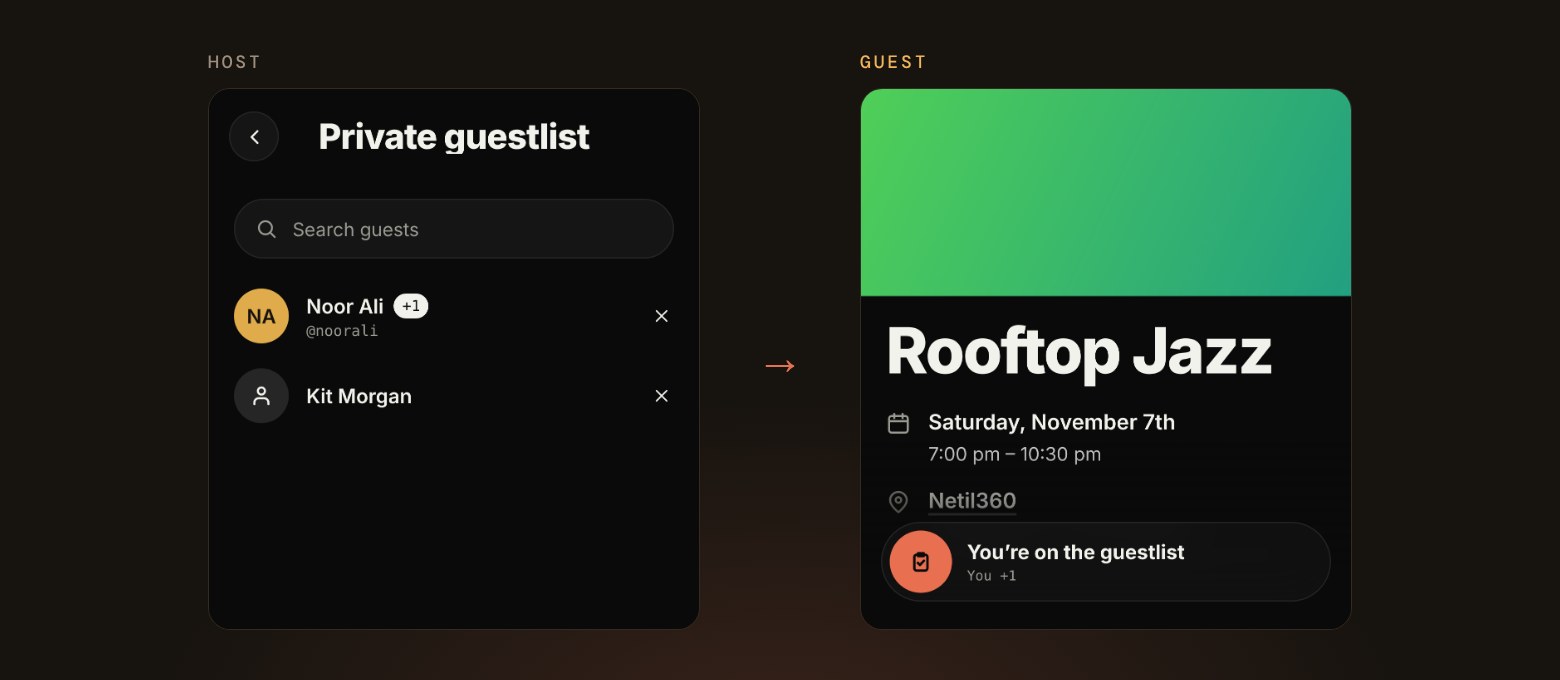
- Hosts can add people to a private guestlist by name, or send them a one-time invite link.
- Guests see their invite right on the event page and can accept or decline with a tap.
- Once you’re on the list, the event shows it at the bottom of the page, plus-ones included.
02 Password-protected events
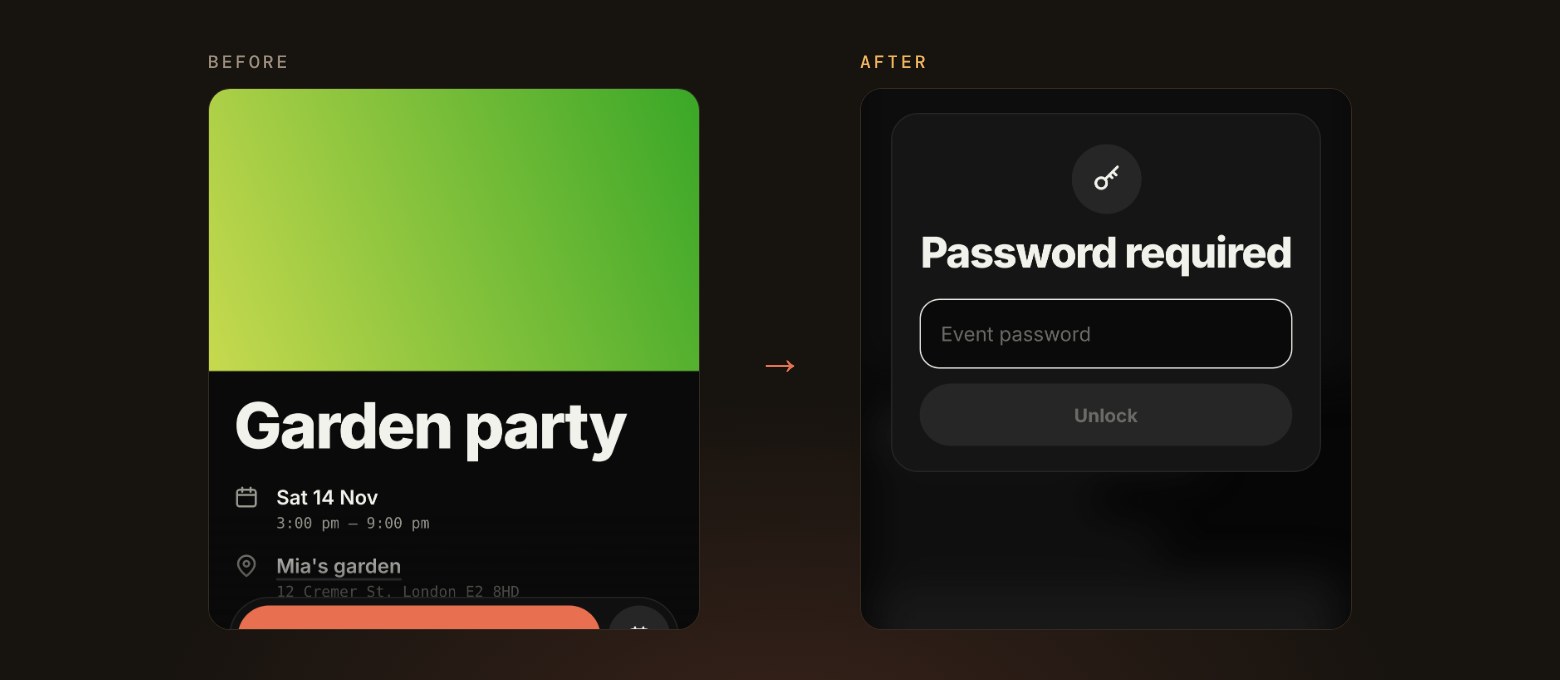
- Hosts can lock an event with a password, so only people who know it can see the details.
- Once you’ve unlocked an event, Stitch remembers it for next time.
- Guest counts now stay hidden until you’re part of the event.
03 A new settings page for ticketed events
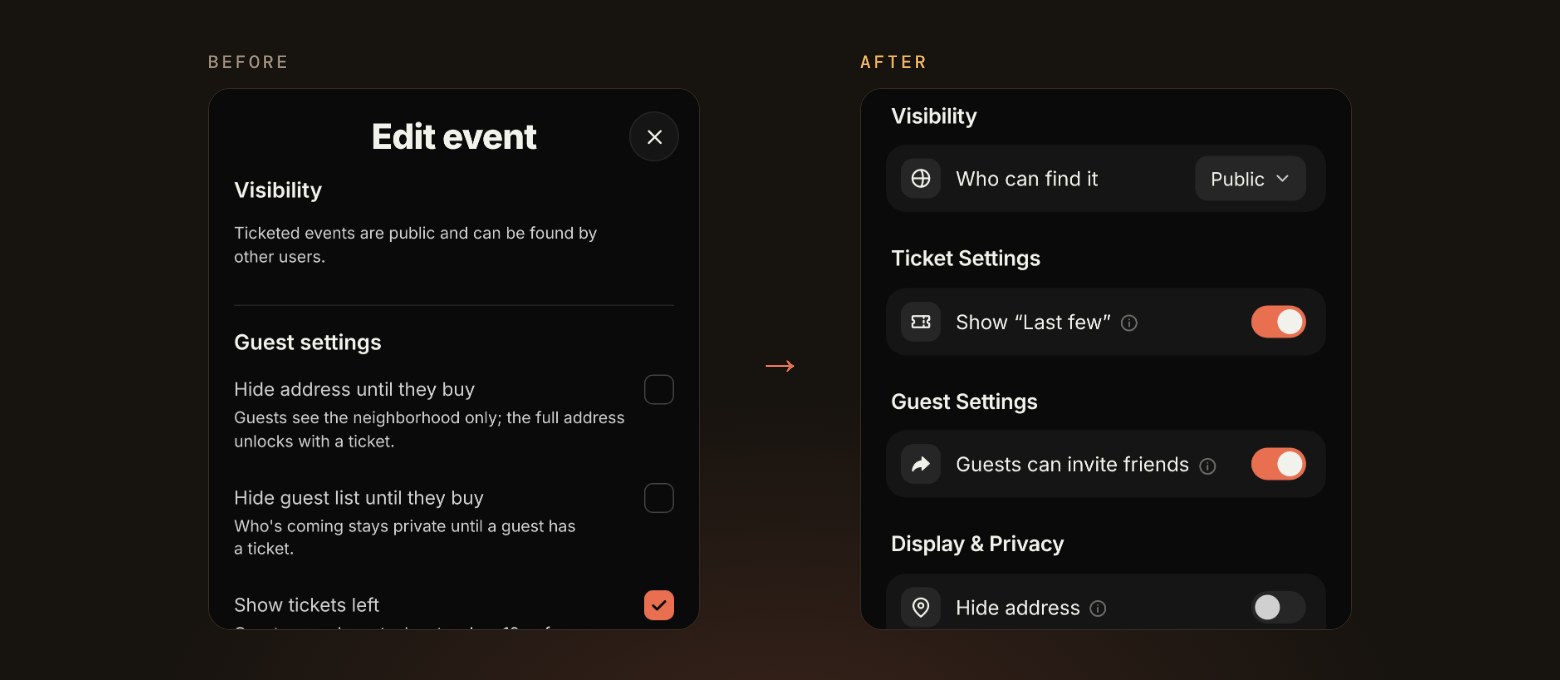
- Event settings now live on their own page, one tap away from the new Settings button at the bottom of the form.
- Ticketed events can now be private, so only people with the link can find the event and buy tickets.
- Showing a Last few tag, hiding the address or guest count until people buy, and adding a password are all in one place.
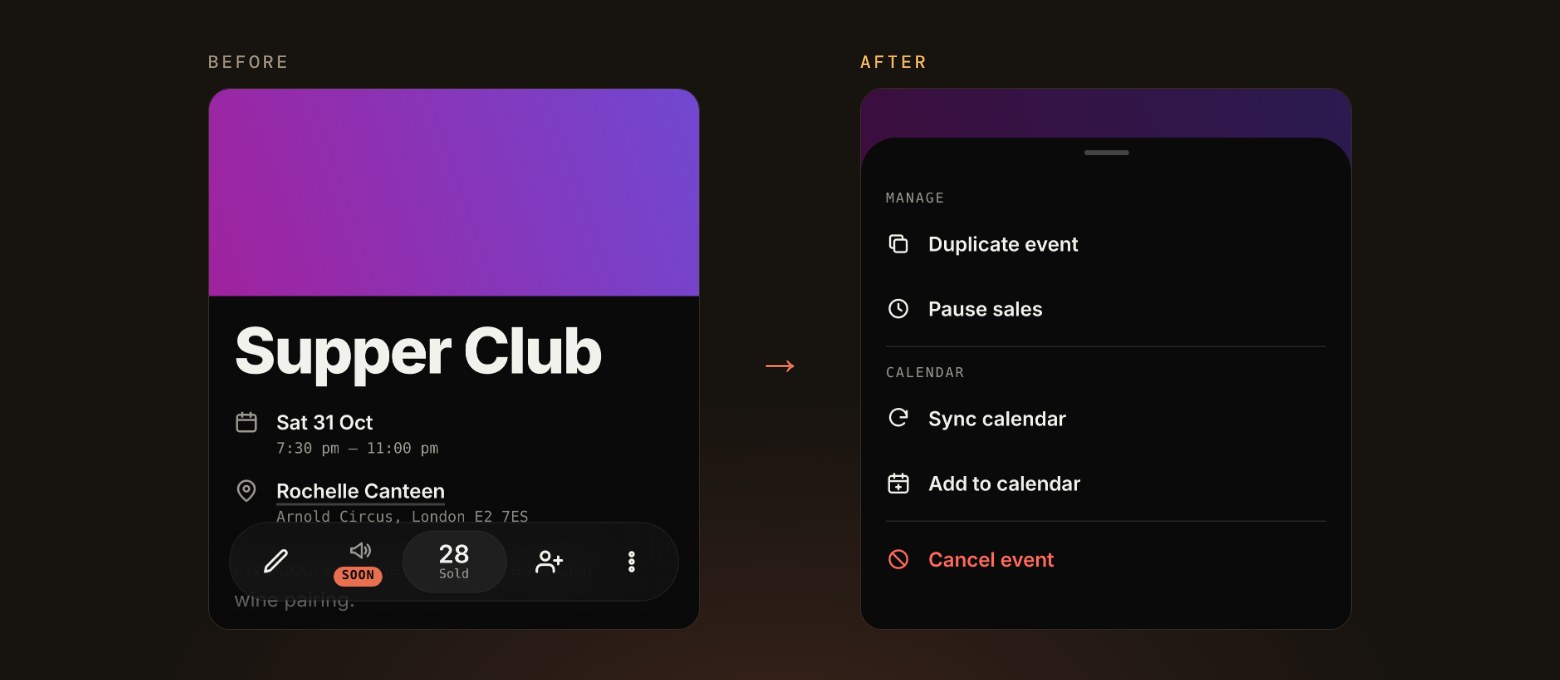
04 A new menu on every event
- Tap the three dots at the top of an event to find everything in one place.
- Hosts can duplicate an event with the details already filled in, pause sales, or cancel, with a clear warning if people have already bought tickets.
- Guests can add the event to their calendar or quietly report an event that doesn’t look right.
05 Groups with a clear owner
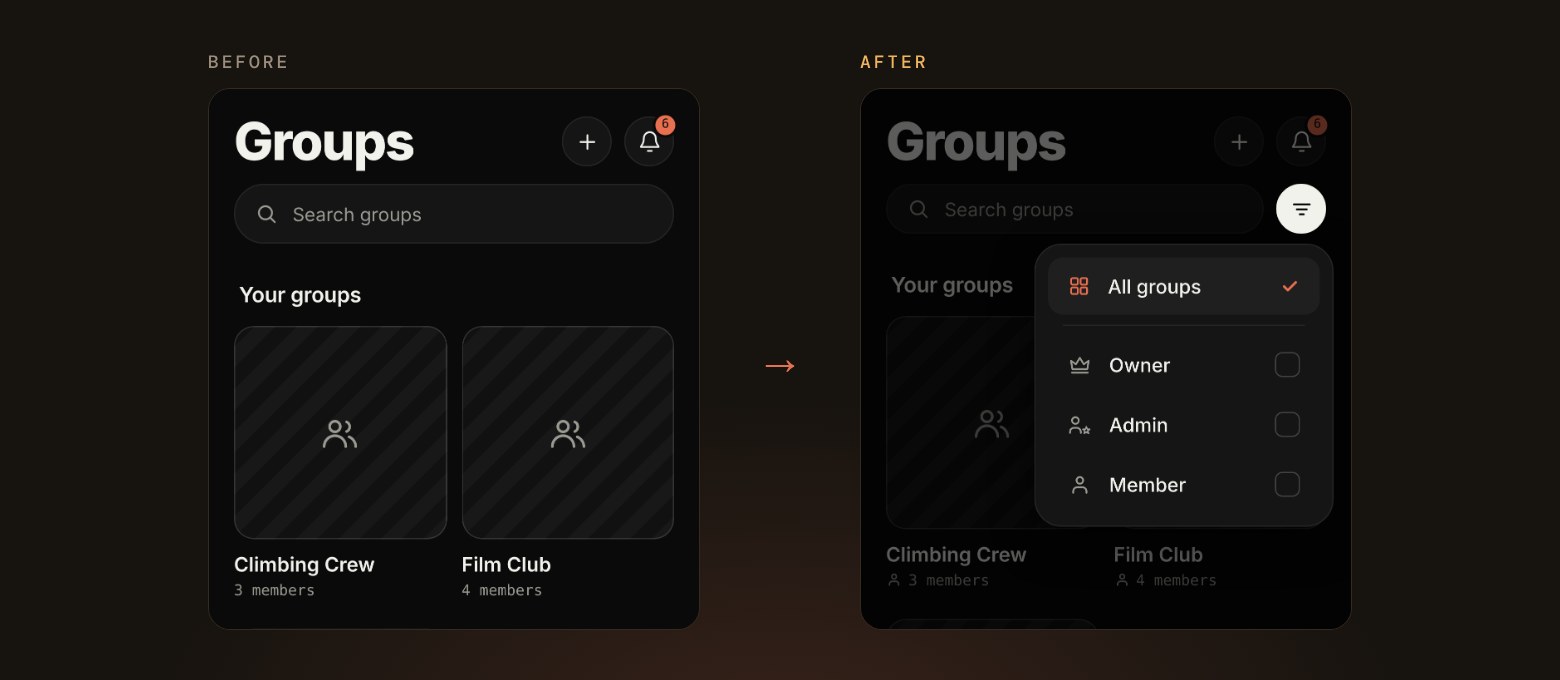
- Every group now has an Owner, who can hand the group over to someone else.
- A new filter shows the groups you own, help run or are a member of.
- You can cancel a request to join, and you’ll hear back as soon as it’s approved.
06 Little touches everywhere
- Ticket types now show Sold out and Last few tags, and hosts get a Manage area with order details and a check-in list for the door.
- Event dates are written out in full, like Saturday, October 31st.
- The back button now always takes you one level up, wherever you are in the app.
07 What we’re working on next
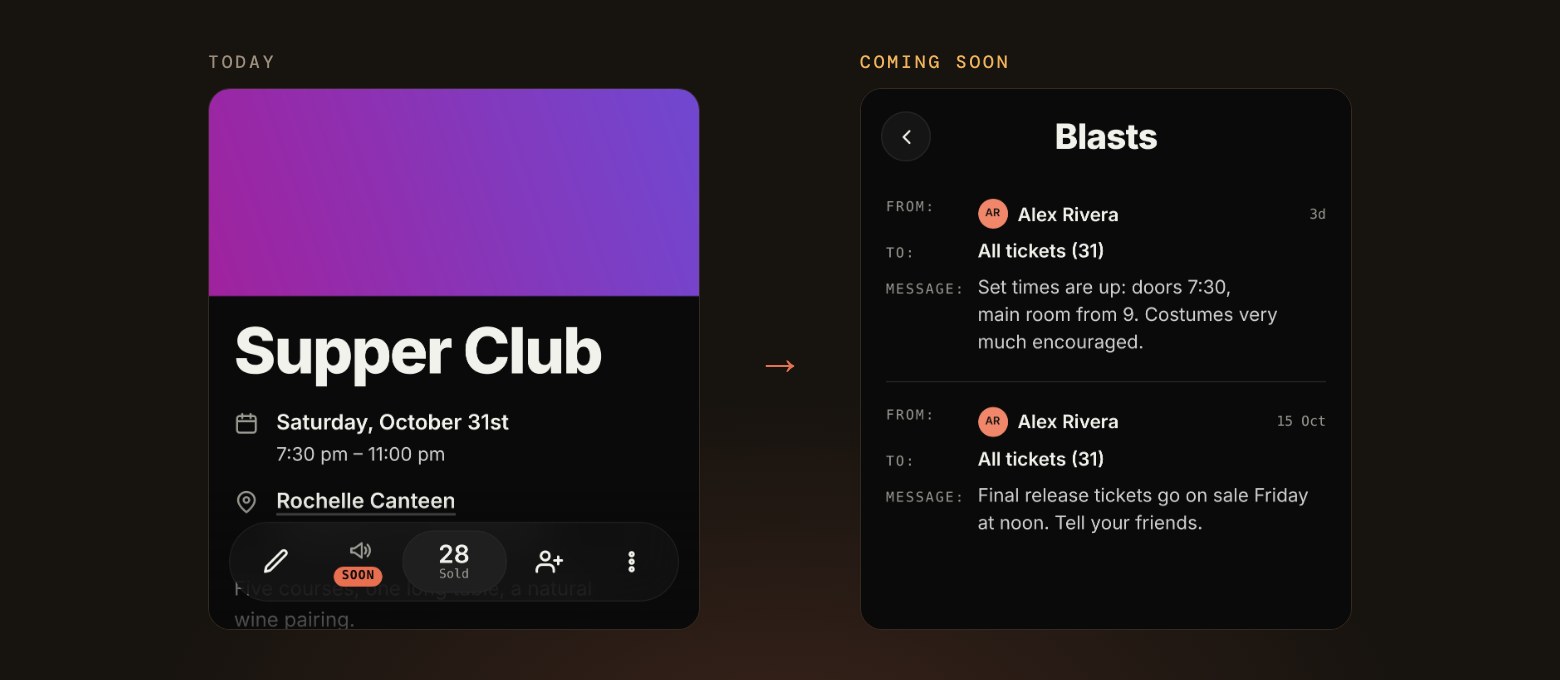
- Blasts, so hosts can send a quick update to everyone going at once.
- A place for guests to share their photos after the event.
- Photos and GIFs in event comments.