Week 8: Question polls in activity, improved photo sharing
You can now run a poll right inside Activity, swipe old invites off your Home to clean it up, and add as many photos as you like to an event in one go.

01 A fresh look for Activity
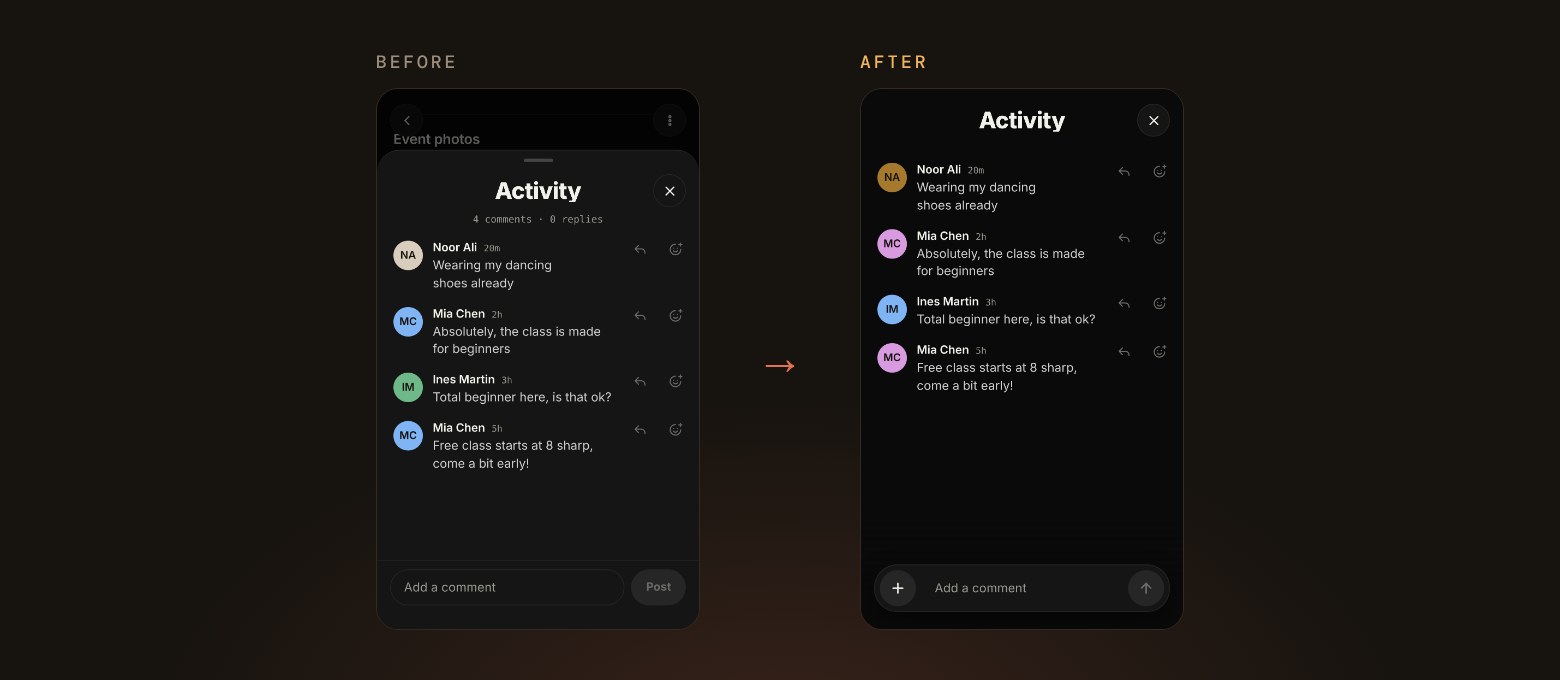
- The comment bar has a new look, with a round send button and a + button, which is where you start a poll.
- View all now opens Activity as its own full page, so longer chats are easier to follow.
- The comment box stays open while your comment sends, so you can keep typing.
02 Polls in Activity
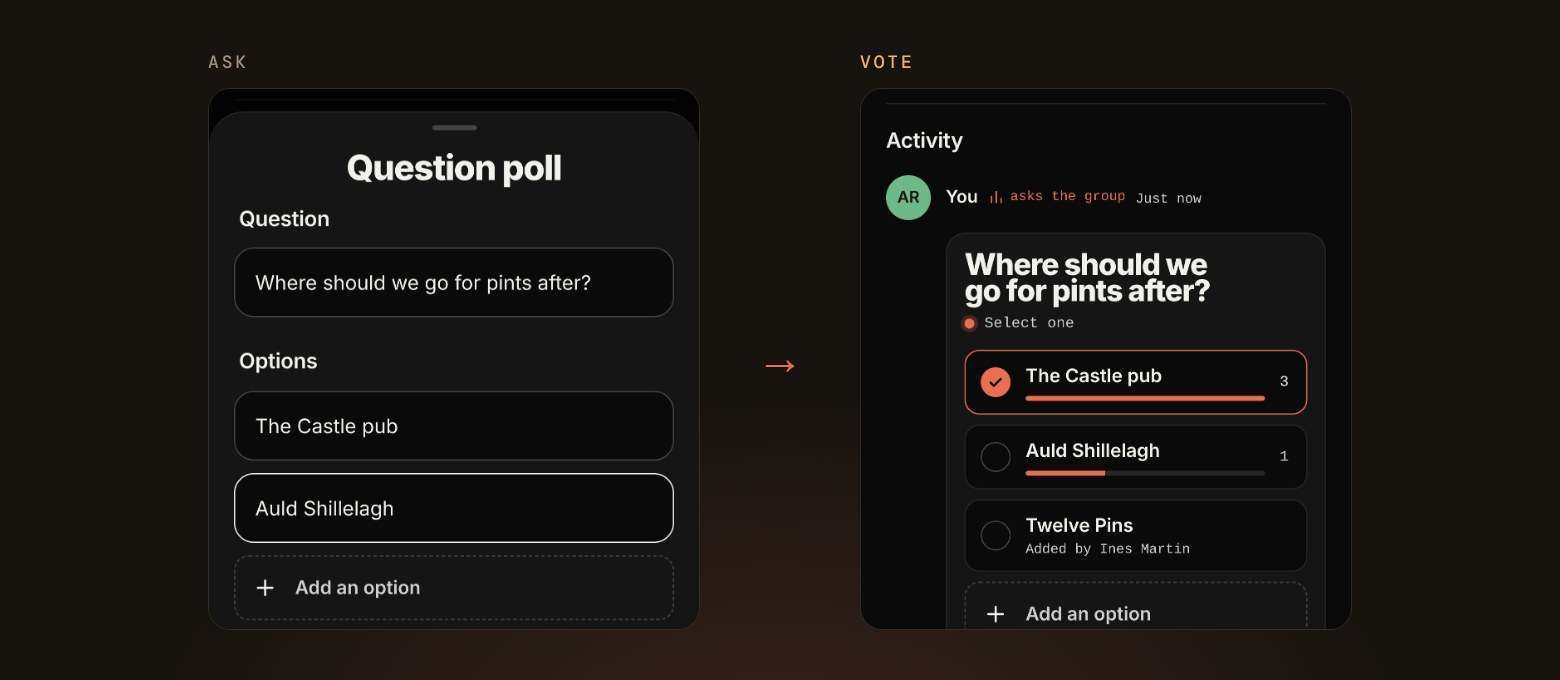
- Tap the + in the comment bar and choose Question poll to ask everyone something, like where to head after.
- Guests can vote, add their own options and tap See all votes to see who picked what.
- Polls work on ticketed events too.
03 Tidy up your Home
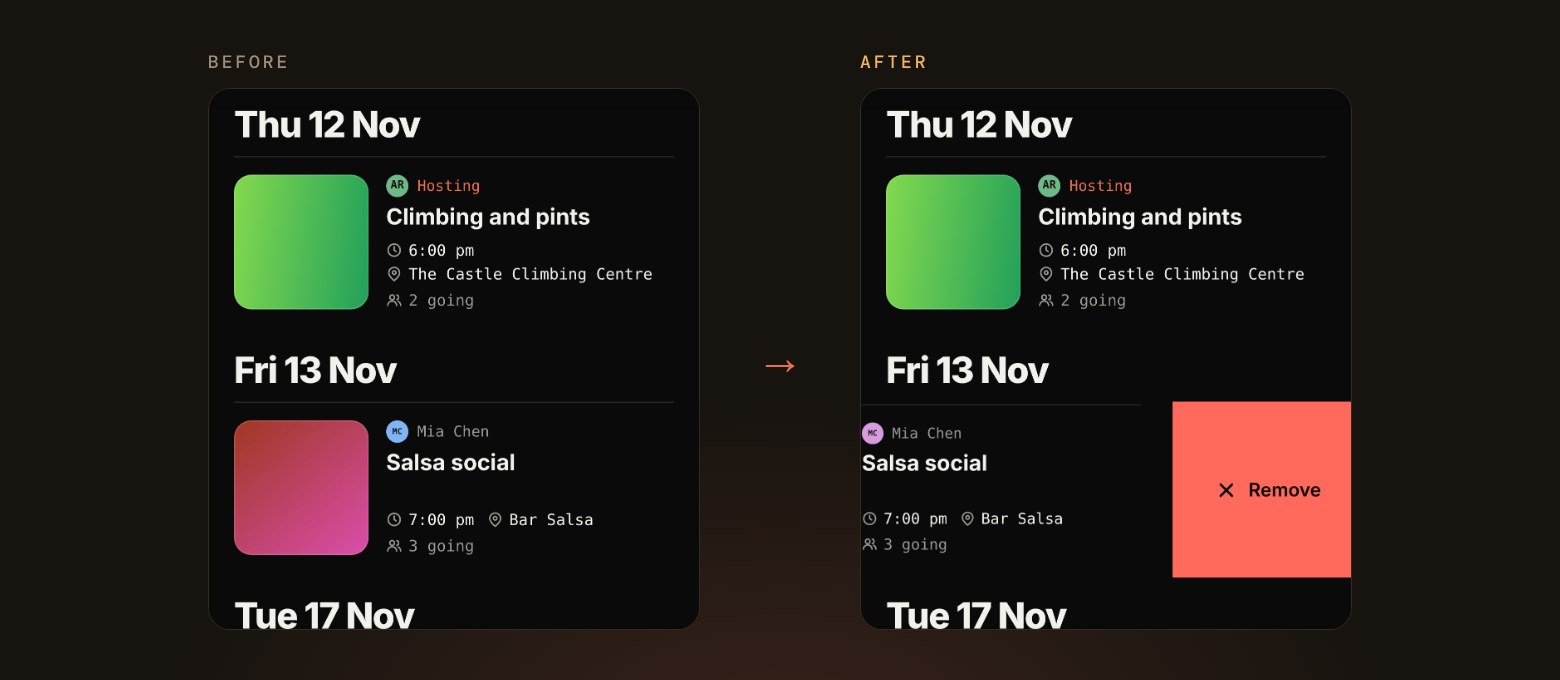
- Swipe an event you were invited to off your Home, handy for clearing out plans that are still TBC or events you just don’t want to see there.
- Stitch checks with you first, and your RSVP stays exactly as it was.
04 Add all your photos at once
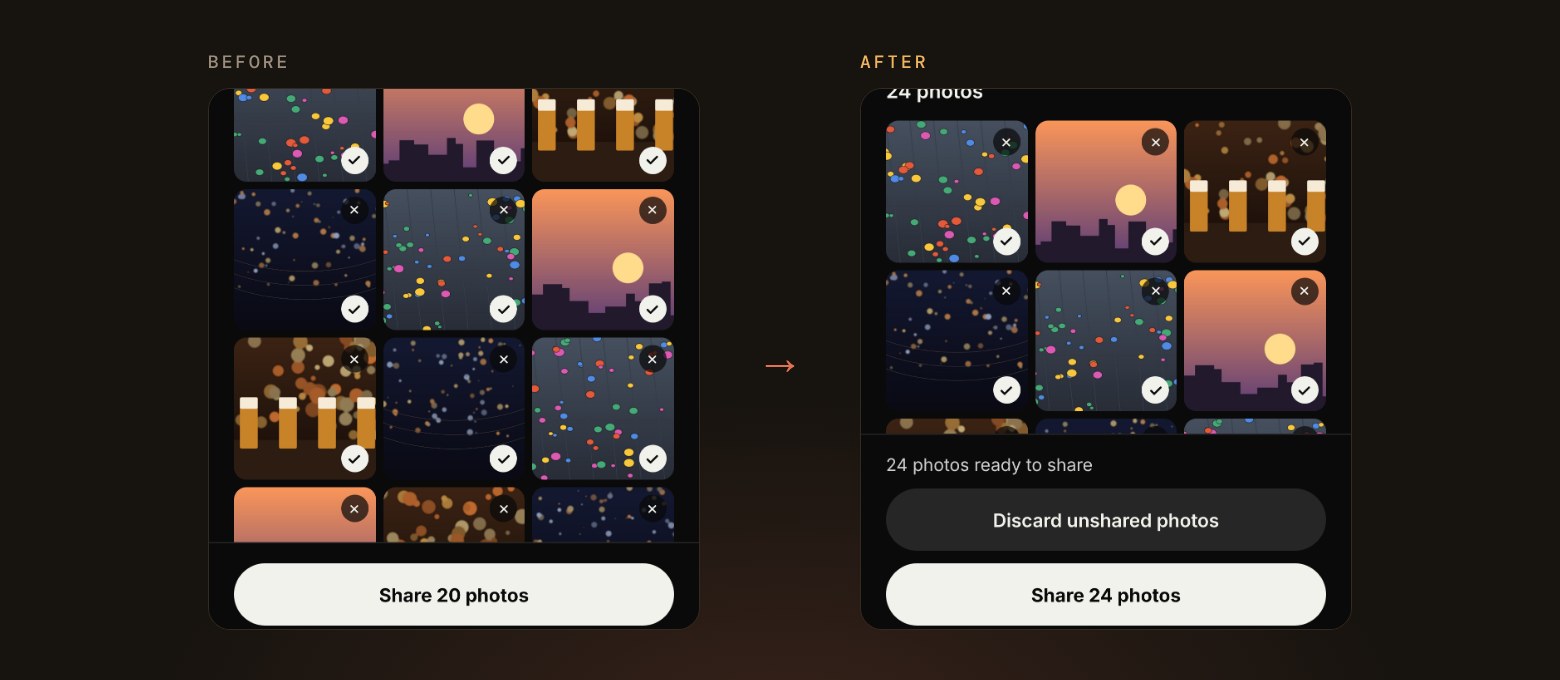
- Pick as many photos as you like in one go, straight off your phone at full size.
- Live Photos are saved as stills, and photos that are too large are compressed for you automatically.
- If you close the uploader or lose signal, tap Resume unshared photos to pick up where you left off, and the same photo won’t be added twice.
05 Saving photos to your phone
- Depending on your device, saving photos opens your share sheet so they can go straight to your photos, or downloads them as a file.
- Downloads show their progress, and you can cancel at any time.
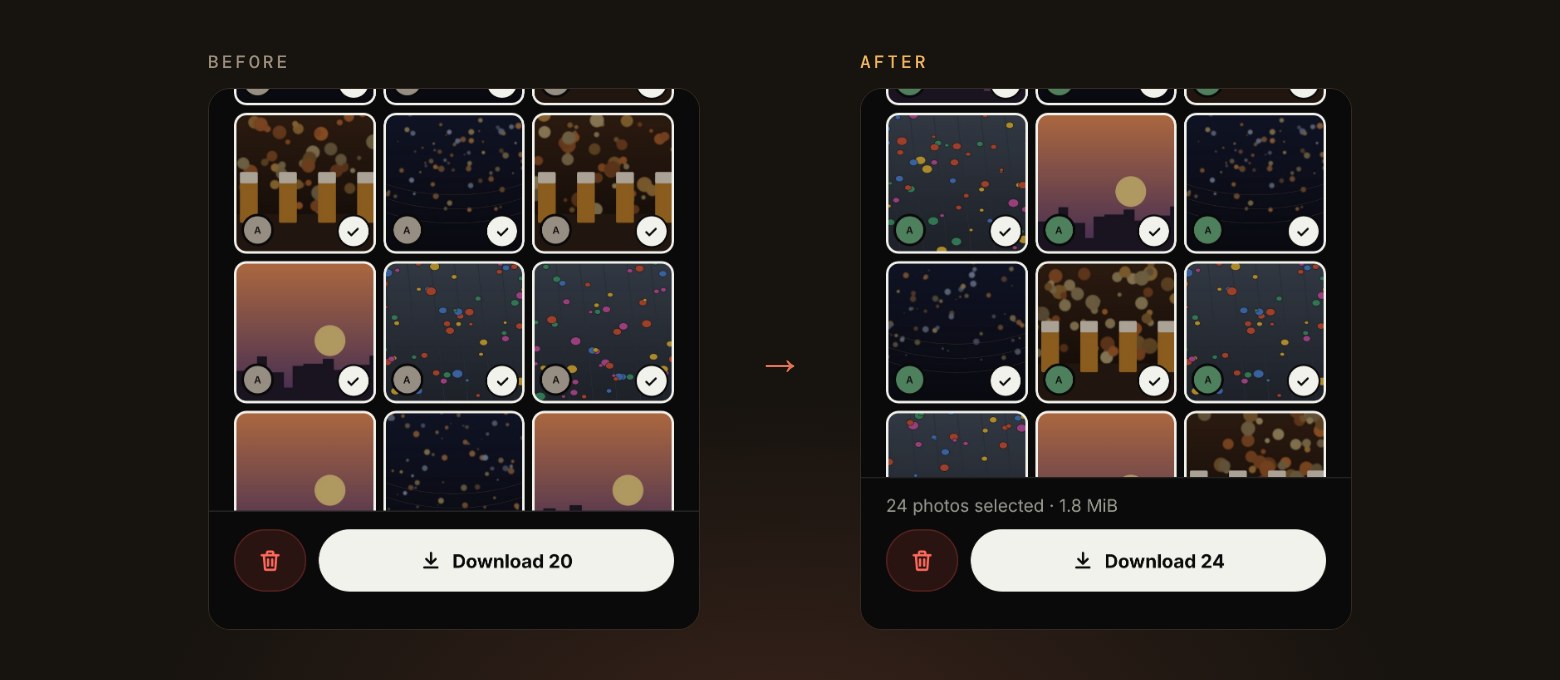
- Select all now picks every photo in the album, with no limit on how many you save.
06 What we’re working on next
- A tidier Past tab that only lists events you went to or hosted, with past ticketed events alongside the rest.
- Photos and GIFs in event comments.
- Adding events you’re hosting or have tickets for to your calendar.